Používateľská príručka
Dokumentácia pre používateľov
Všetko, čo potrebujete vedieť o používaní Autogram Portalu.
Na podpis vždy posielate balík
V aplikácii pracujete s dvoma pojmami. Dokument je jeden súbor, ktorý sa podpisuje. Balík je obal, v ktorom dokumenty posielate na podpis iným – väčšinou obsahuje iba jeden dokument.
Dokument
Jeden podpisovaný súbor
- PDF, XML, ASiC-E alebo iný podporovaný formát
- Podpísať alebo overiť ho môžete aj sami – bez balíka
- Ak ho má podpísať niekto iný, vložíte ho do balíka
Balík
Obal na odoslanie na podpis
- Obsahuje jeden alebo viac dokumentov
- Určuje adresátov a koľkí z nich majú podpísať
- Adresáti dostanú odkaz na celý balík a podpíšu dokumenty v ňom
Najčastejší prípad je balík s jedným dokumentom. Viac dokumentov do jedného balíka sa zatiaľ dá pridať iba cez API.
Prihlásenie a organizácie
Dokument môžete podpísať aj bez prihlásenia. Účet potrebujete, ak chcete dokumenty uchovávať, posielať ich na podpis iným, pridávať k nim časové pečiatky alebo pracovať spolu s kolegami v organizácii.
Registrácia a prihlásenie
- Registrácia
- Kliknite na Prihlásiť sa a potom na Registrovať sa. Zadajte e-mail, potvrďte súhlas s podmienkami používania a so zásadami ochrany osobných údajov a účet aktivujte odkazom z potvrdzovacieho e-mailu.
- Prihlásenie odkazom z e-mailu
- Portál nepoužíva heslá. Zadajte svoj e-mail a prihláste sa jednorazovým odkazom, ktorý vám príde e-mailom. Ak zaškrtnete Zapamätať si ma, zostanete na tomto zariadení prihlásení.
- Prihlásenie cez Google
- Tlačidlom Pokračovať cez Google sa prihlásite účtom Google. Ak účet s týmto e-mailom v portáli ešte nemáte, vytvorí sa po potvrdení súhlasu s podmienkami.
- Bez prihlásenia
- Bez účtu môžete nahrať dokument, zobraziť jeho podpisy a podpísať ho. Takýto dokument sa po krátkom čase automaticky zmaže, preto si podpísaný dokument hneď stiahnite. Ak sa prihlásite priamo z detailu dokumentu tlačidlom Prihlásiť sa alebo registrovať, dokument sa presunie do vášho účtu.
Organizácie
Dokumenty a balíky vždy patria organizácii, v ktorej práve pracujete. Táto organizácia je aj odosielateľom vašich balíkov.
- Osobná organizácia
- Každý používateľ má vlastnú organizáciu s plánom Basic. Vytvorí sa spolu s účtom a zostáva vám, aj keď sa stanete členom inej organizácie. V ľavom menu sa zobrazuje ako Osobná organizácia.
- Organizácia s plánom PRO
- Organizácia s viacerými členmi pre právnické osoby (obchodné spoločnosti, združenia, úrady). Všetci členovia vidia a spravujú všetky dokumenty a balíky organizácie. Organizáciu PRO zriaďuje administrátor portálu, ktorý nastavuje aj jej názov, plán a funkcie (Archív podpisov, API prístup).
- Vlastník a člen
- Vlastníci pozývajú a odstraňujú členov, spravujú API kľúč a dostávajú e-mailové notifikácie o balíkoch poslaných cez API. Členovia pracujú s dokumentmi a balíkmi rovnako ako vlastníci.
- Výber organizácie
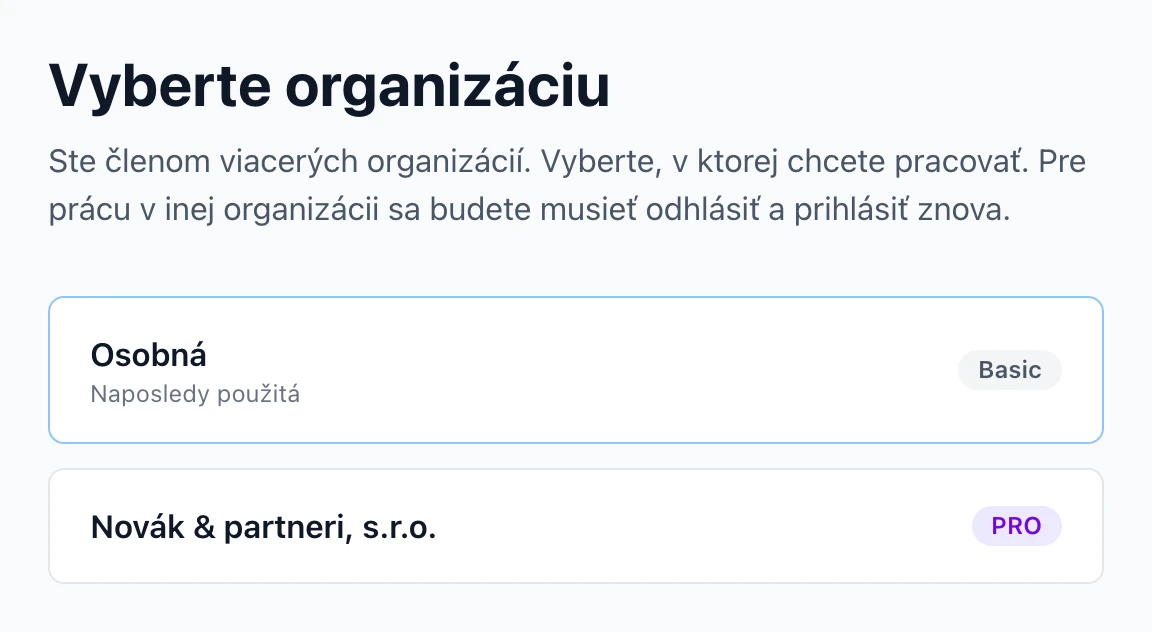
- Ak ste členom viacerých organizácií, po prihlásení si vyberiete, v ktorej chcete pracovať. Aktuálnu organizáciu vidíte v ľavom menu dole. Do inej organizácie sa prepnete tak, že sa odhlásite a znova prihlásite.
 (zobrazí sa v plnej veľkosti v novom okne)
Plány a limity
Čo môžete v organizácii robiť, závisí od jej plánu. Konkrétne limity určuje prevádzkovateľ portálu.
- Basic
- Plán pre jedného používateľa. Môže obmedzovať počet uložených dokumentov, počet dokumentov odoslaných na podpis za mesiac a počet časových pečiatok za mesiac. Dokumenty a balíky sa môžu po uplynutí doby uchovávania automaticky mazať.
- PRO
- Plán pre organizácie s neobmedzeným počtom členov. Dokumenty odoslané na podpis a časové pečiatky sa evidujú po mesiacoch ako podklad pre vyúčtovanie.
- Využitie plánu
- Čerpanie limitov, dobu uchovávania dokumentov a maximálnu veľkosť dokumentu vidíte na stránke Domov a v Nastaveniach v časti Organizácia. Mesačné limity sa obnovujú na začiatku kalendárneho mesiaca. Keď limit vyčerpáte, príslušná akcia nie je dostupná a portál vám to oznámi. Ak plán dokumenty po čase maže, dátum zmazania vidíte na detaile dokumentu aj balíka a dokumenty, ktoré sa zmažú do 7 dní, sú označené v zoznamoch. Na stránke Domov vtedy uvidíte, koľko ich je.
- Čo sa počíta ako dokument odoslaný na podpis
- Každý dokument balíka, ktorý podpíše niekto iný ako vaša organizácia – bez ohľadu na to, či ste adresáta pozvali e-mailom, alebo mu poslali odkaz. Ak organizácia limit vyčerpá, adresáti nemôžu podpisovať, kým sa limit neobnoví.
Domov
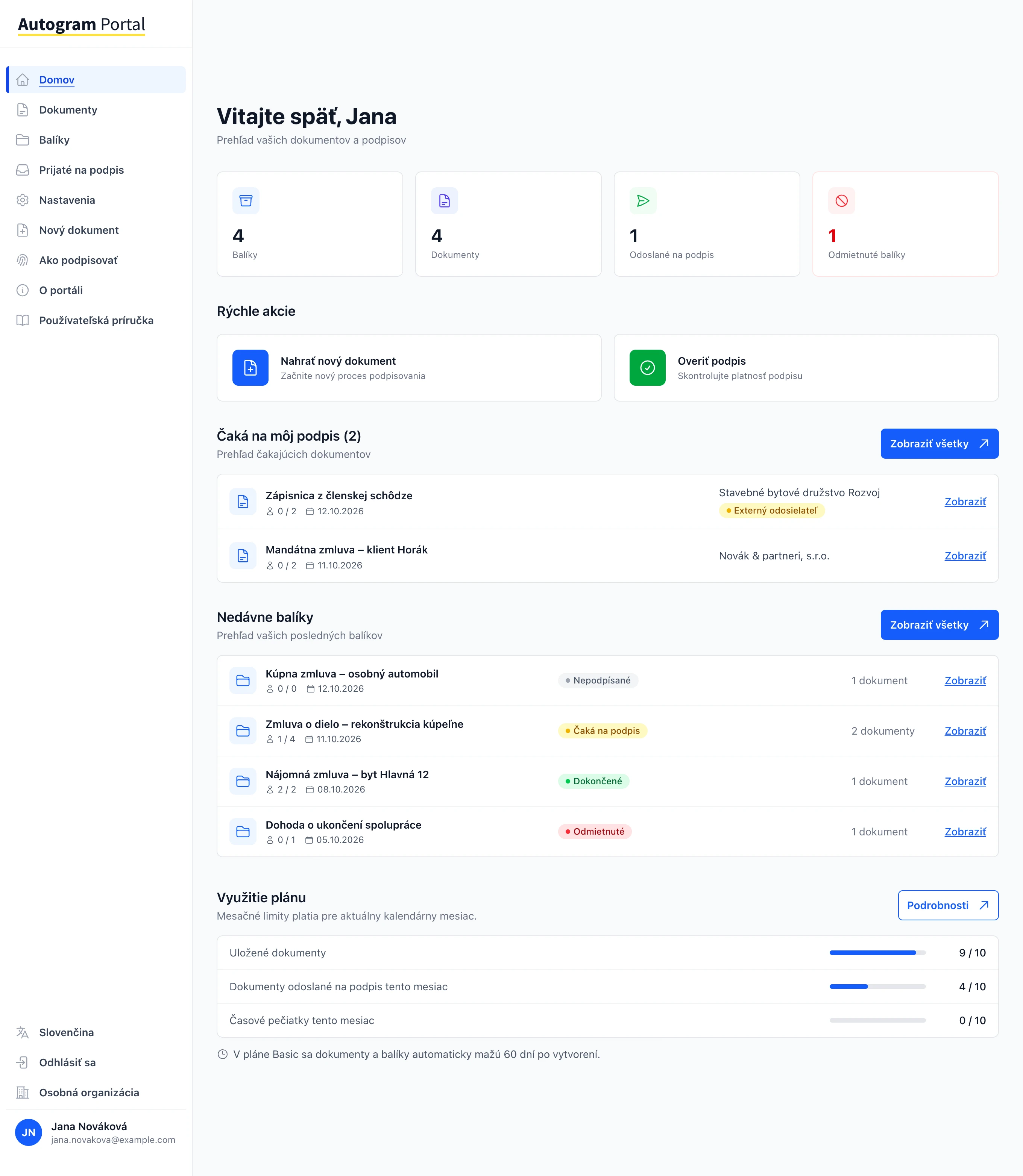
Po prihlásení sa zobrazí stránka Domov. Nájdete na nej súhrnné počty, rýchle akcie, balíky čakajúce na váš podpis, posledné balíky a využitie plánu.
- Balíky
- Počet všetkých balíkov organizácie.
- Dokumenty
- Počet samostatných dokumentov, ktoré nie sú súčasťou žiadneho balíka.
- Odoslané na podpis
- Balíky, v ktorých niektorý adresát ešte nepodpísal ani neodmietol.
- Odmietnuté balíky
- Balíky, v ktorých niektorý adresát odmietol podpis.
Kliknutím na počet otvoríte príslušný zoznam.
Čo ešte nájdete na stránke Domov
- Rýchle akcie – Nahrať nový dokument, Overiť podpis a v organizáciách s archívom podpisov aj Archív podpisov.
- Čaká na môj podpis – Balíky, v ktorých ste adresátom vy, a to aj od iných organizácií. Tie sú označené ako Externý odosielateľ.
- Nedávne balíky – Päť najnovších balíkov organizácie so stavom, počtom podpisov a dátumom vytvorenia.
- Využitie plánu – Čerpanie limitov plánu v aktuálnom mesiaci.
Organizácia s plánom PRO
V organizácii PRO je na začiatku zoznam Čaká na môj podpis a pod ním Prehľad organizácie. Pri nedávnych balíkoch je označené Čaká na mňa, ak sa v nich čaká na váš podpis. Ak má organizácia zapnutý archív podpisov, stránka Domov upozorní aj na podpisy, ktorým čoskoro skončí platnosť.
 (zobrazí sa v plnej veľkosti v novom okne)
Dokumenty
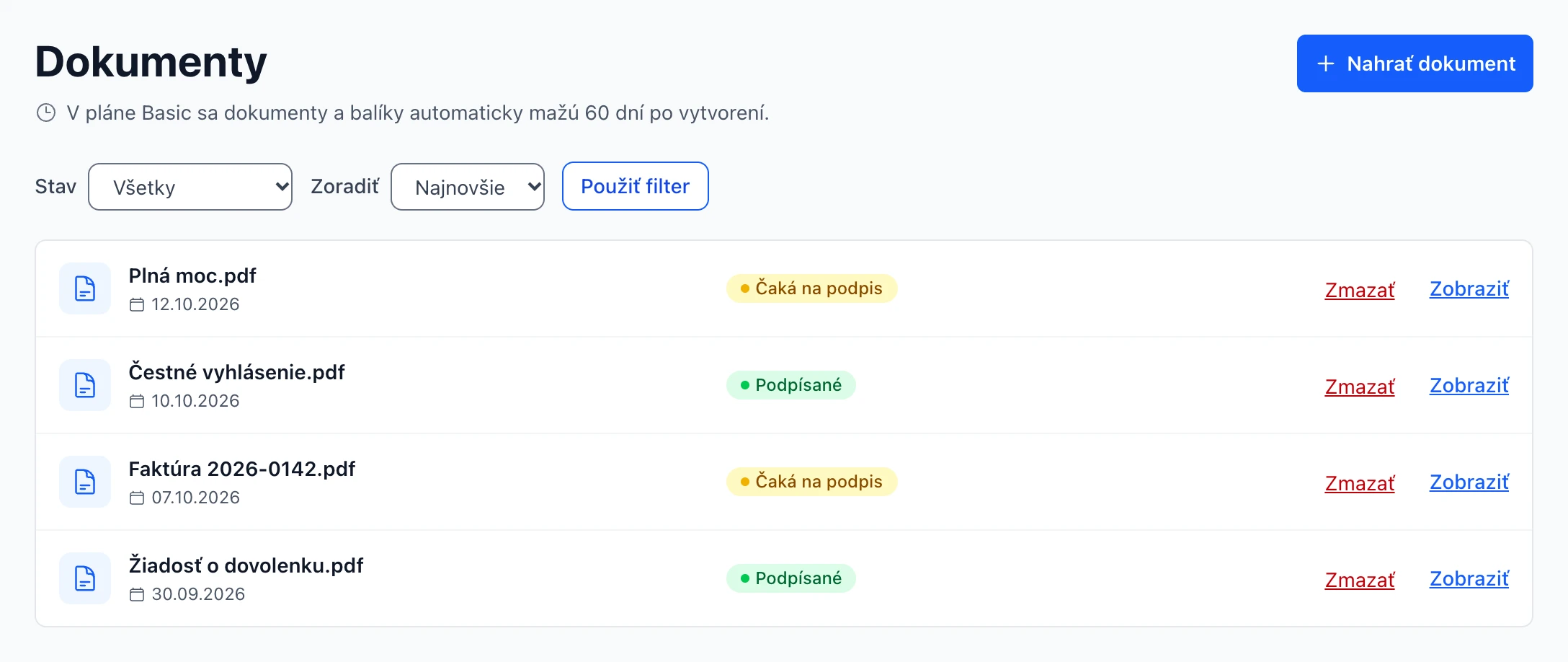
V sekcii Dokumenty sú samostatné dokumenty, ktoré ste nahrali na podpis alebo na overenie. Keď dokument pošlete na podpis, presunie sa do balíka a nájdete ho v sekcii Balíky. Zoznam môžete filtrovať podľa stavu a zoradiť podľa dátumu.
 (zobrazí sa v plnej veľkosti v novom okne)
Stavy dokumentov
- Čaká na podpis
- Dokument zatiaľ nie je podpísaný.
- Podpísané
- Dokument je podpísaný – v portáli alebo už pri nahratí obsahoval podpis.
Nahratie dokumentu
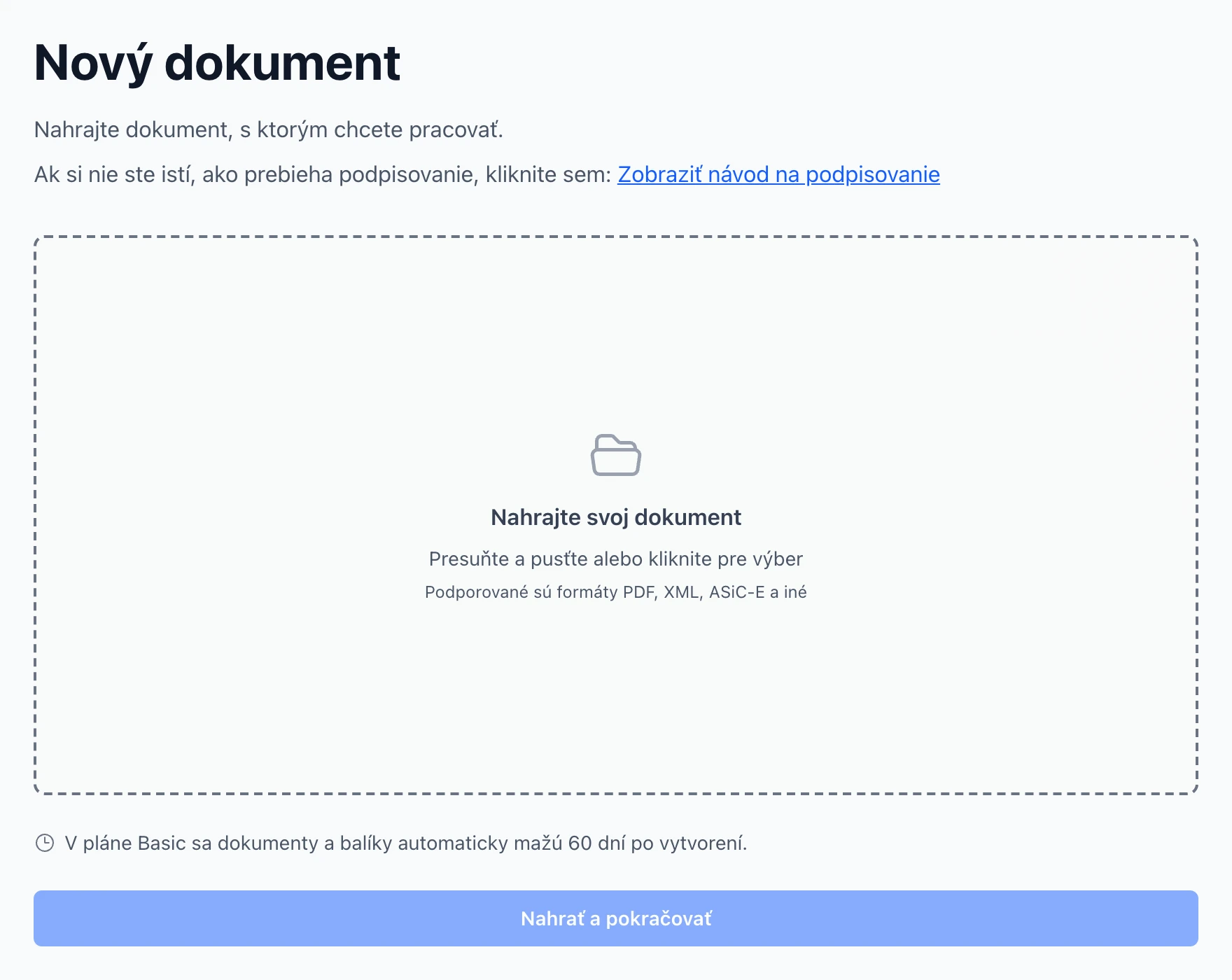
Kliknite na Nový dokument v ľavom menu, pretiahnite súbor do vyznačenej plochy alebo ho vyberte z počítača a kliknite na Nahrať a pokračovať. Podporované sú PDF, XML, kontajnery ASiC-E aj ďalšie typy súborov.
 (zobrazí sa v plnej veľkosti v novom okne)
Detail dokumentu
Po nahratí sa otvorí detail dokumentu. Môžete si zobraziť jeho obsah (Zobraziť dokument), skontrolovať, kto ho už podpísal a akým podpisom (Zobraziť detaily ukáže certifikát a čas podpisu), stiahnuť podpísanú verziu alebo dokument zmazať. Pod tým vyberiete, čo chcete s dokumentom urobiť, a kliknete na Pokračovať.
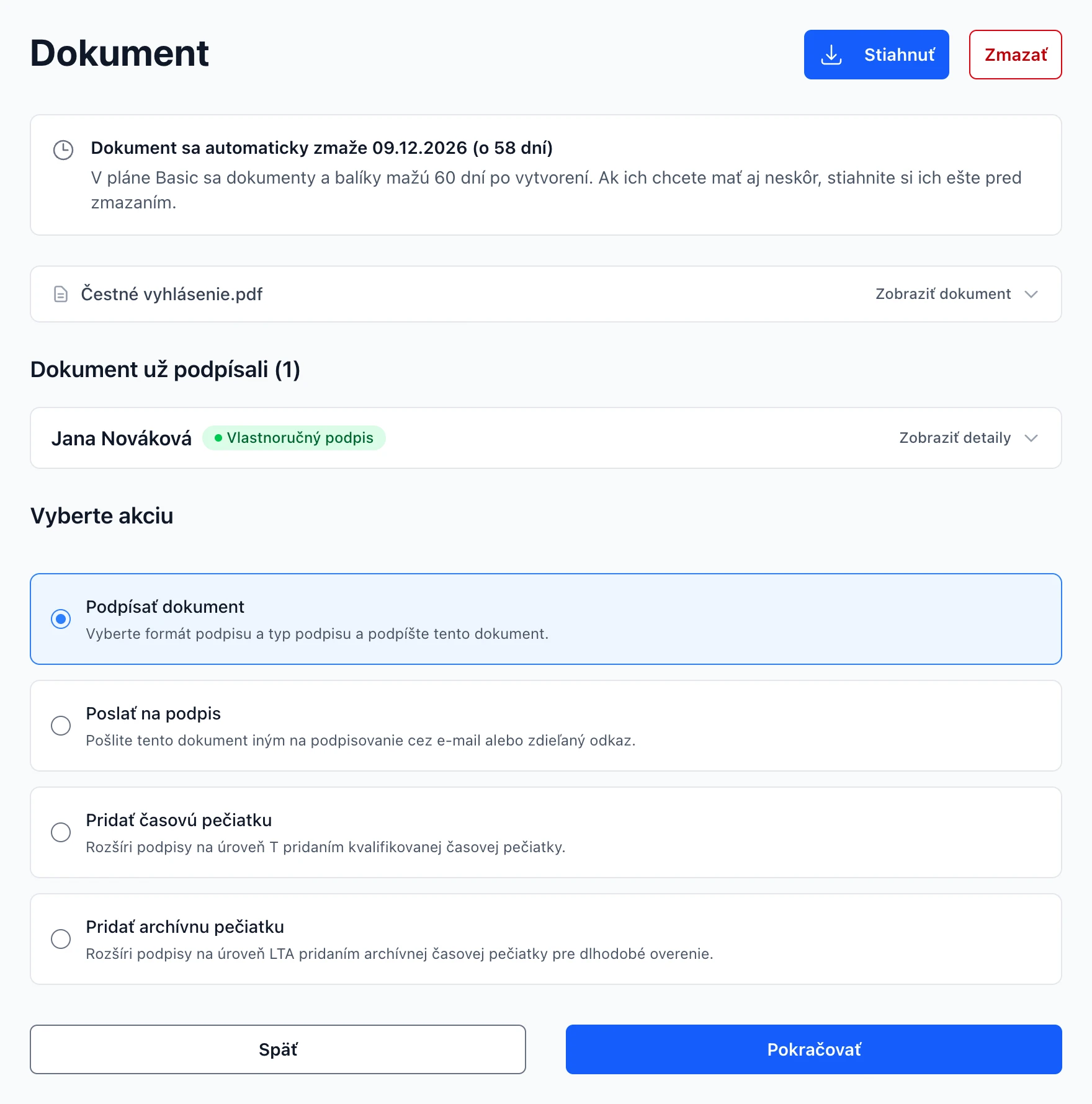 (zobrazí sa v plnej veľkosti v novom okne)
Akcie pri dokumente
- Podpísať dokument – Podpíšete dokument sami. Postup je opísaný v časti Podpisovanie.
- Poslať na podpis – Vytvorí z dokumentu balík, do ktorého pridáte adresátov. Postup je opísaný v časti Balíky.
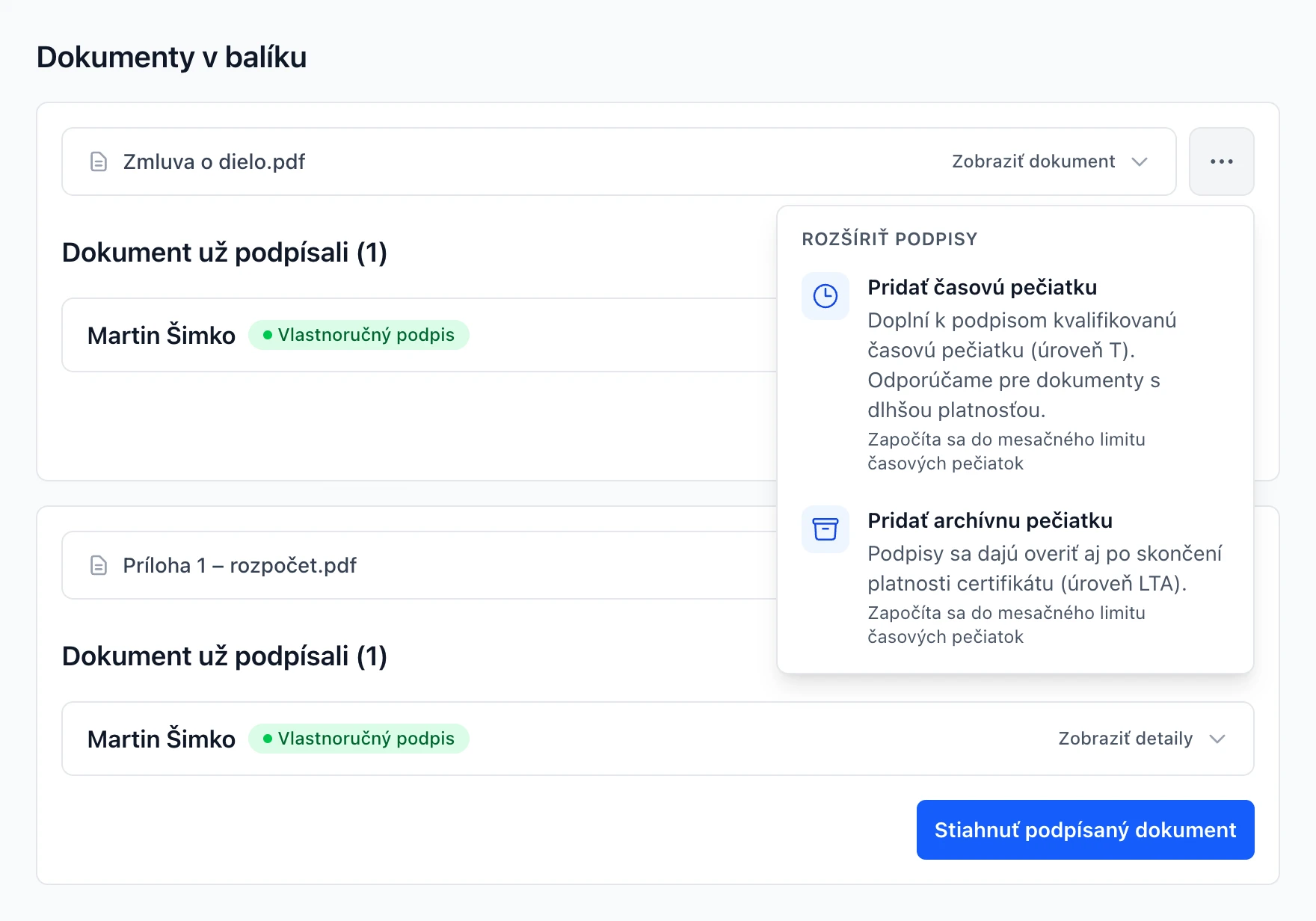
- Pridať časovú pečiatku – Rozšíri podpisy na úroveň T pridaním kvalifikovanej časovej pečiatky. Ponúka sa pri podpísanom dokumente, ktorého podpisy ešte nemajú časovú pečiatku.
- Pridať archívnu pečiatku – Rozšíri podpisy na úroveň LTA pridaním archívnej časovej pečiatky, vďaka ktorej sa podpis dá overiť aj po skončení platnosti certifikátu. V organizáciách s archívom podpisov sa akcia volá Archivovať dokument.
- Stiahnuť – Stiahne podpísaný dokument. V organizáciách s archívom podpisov nájdete v Histórii verzií aj predchádzajúce podpísané verzie.
- Zmazať – Natrvalo odstráni dokument. Dokument, ktorý je súčasťou balíka, nie je možné zmazať samostatne – zmazať môžete celý balík.
Bez prihlásenia je dostupná iba akcia Podpísať dokument. Časové a archívne pečiatky sa započítavajú do mesačného limitu časových pečiatok.
Overenie podpisu
Ak chcete iba zistiť, kto dokument podpísal a či je podpis platný, nahrajte ho cez Nový dokument alebo rýchlu akciu Overiť podpis. Výsledok overenia sa zobrazí na detaile dokumentu. Dokument potom môžete zmazať.
Podpisovanie dokumentov
Kvalifikovaný elektronický podpis (KEP) vytvoríte občianskym preukazom s čipom alebo iným kvalifikovaným zariadením a podpisovou aplikáciou. Portál vás celým postupom prevedie.
Postup podpisovania
-
Vyberte akciu Podpísať dokument
Na detaile dokumentu nechajte vybranú akciu Podpísať dokument a kliknite na Pokračovať. Dokument, ktorý vám niekto poslal, otvoríte odkazom z e-mailu alebo v sekcii Prijaté na podpis.
-
Zvoľte typ podpisu
Vyberte Vlastnoručný podpis alebo Osvedčený podpis (s časovou pečiatkou). V Rozšírených nastaveniach môžete zmeniť formát podpisu. Ak podpisujete dokument na žiadosť odosielateľa, typ a formát už nastavil on.
-
Vyberte, čím budete podpisovať
Pri prvom podpise vyberiete svoj doklad alebo zariadenie a potvrdíte, že poznáte BOK alebo PIN a máte vydané podpisové certifikáty. Portál si výber zapamätá a nabudúce ho len zobrazí s možnosťou Zmeniť výber.
-
Vyberte podpisovú aplikáciu
Ponuka aplikácií sa prispôsobí vášmu dokladu. Staršie občianske preukazy a čipové karty vyžadujú počítač s čítačkou kariet a Autogram na počítači.
-
Podpíšte a stiahnite dokument
Podpis dokončíte v aplikácii zadaním podpisového PIN-u. Portál podpísaný dokument automaticky uloží a stiahnete ho tlačidlom Stiahnuť.
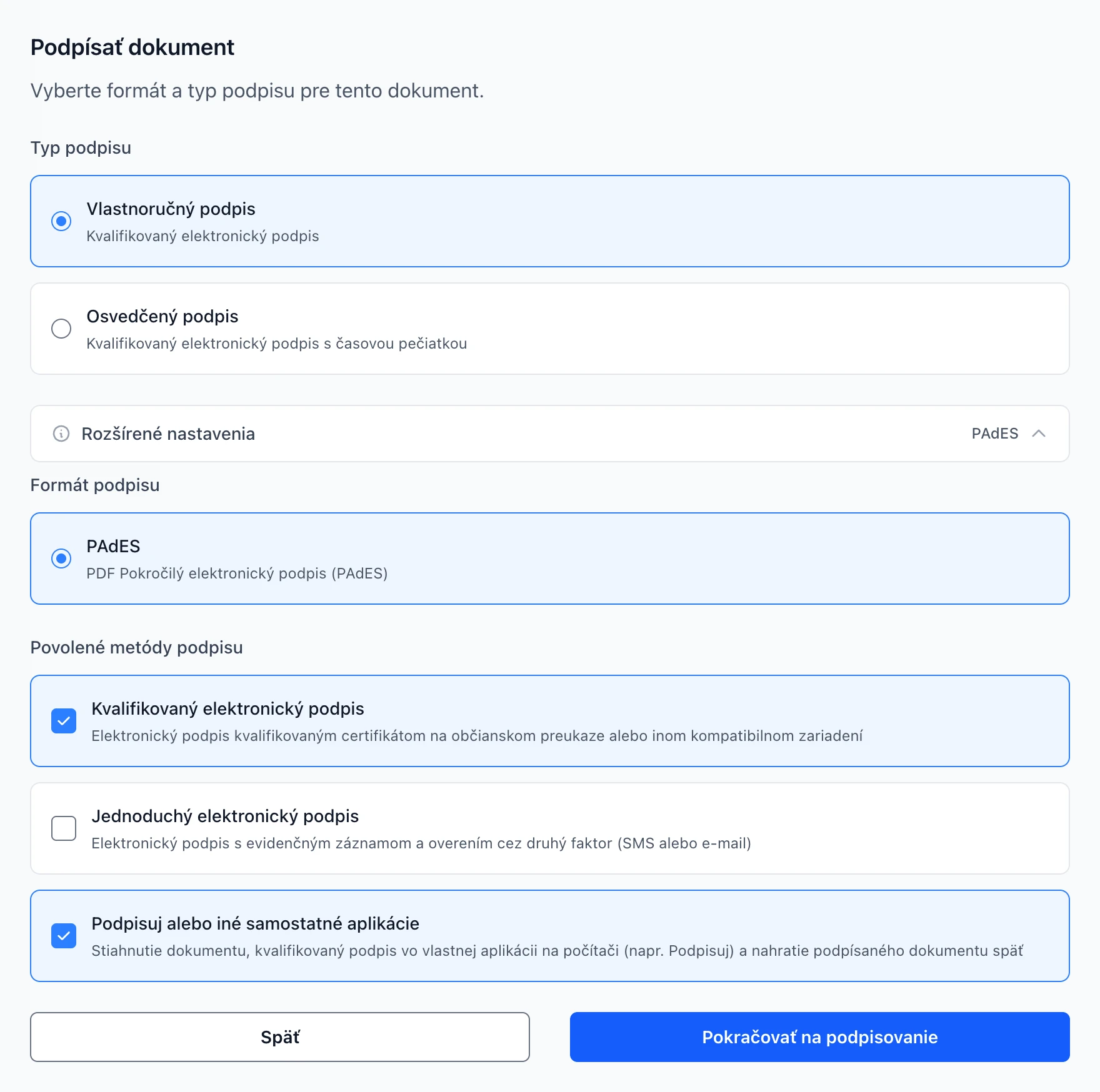 (zobrazí sa v plnej veľkosti v novom okne)
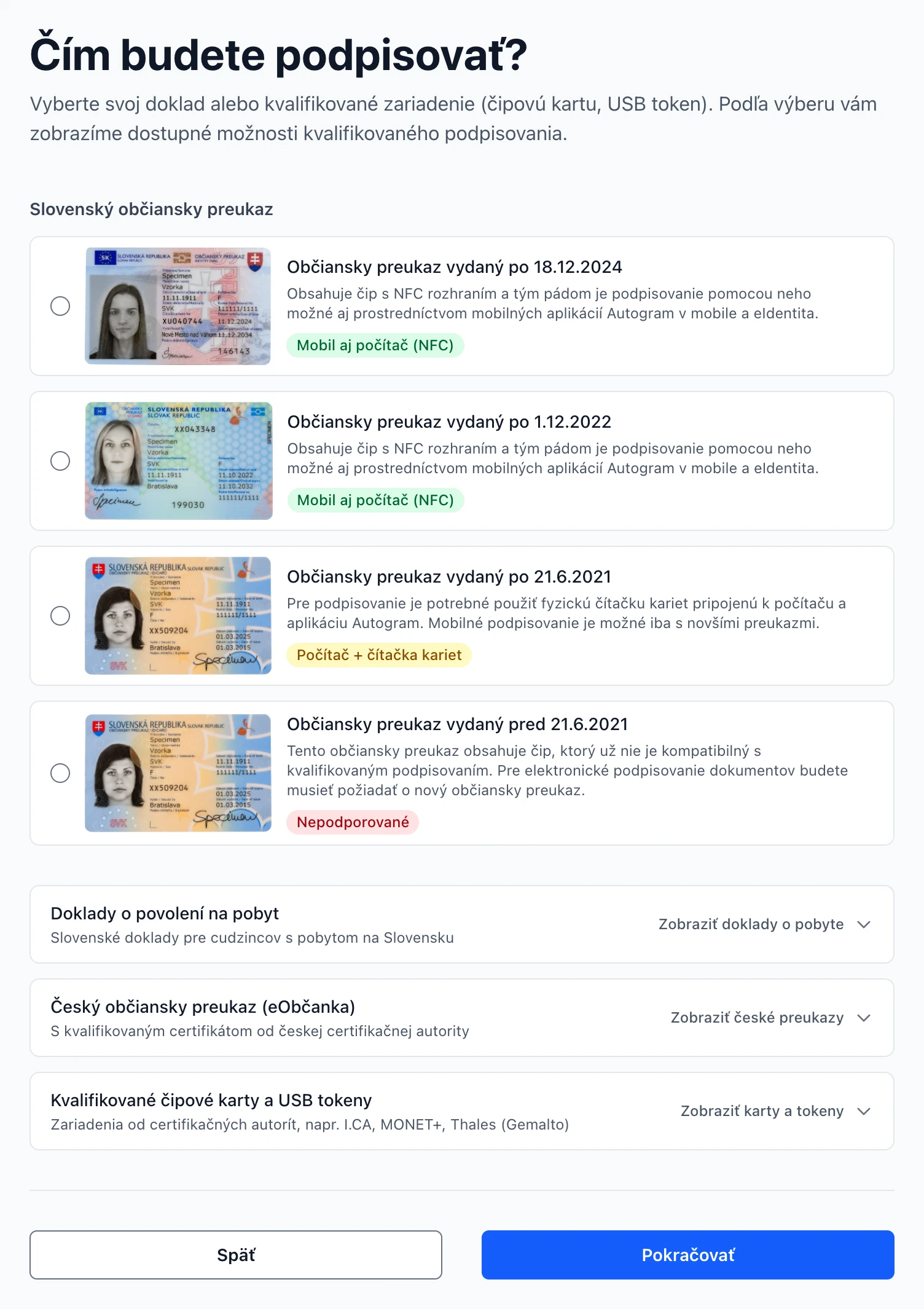 (zobrazí sa v plnej veľkosti v novom okne)
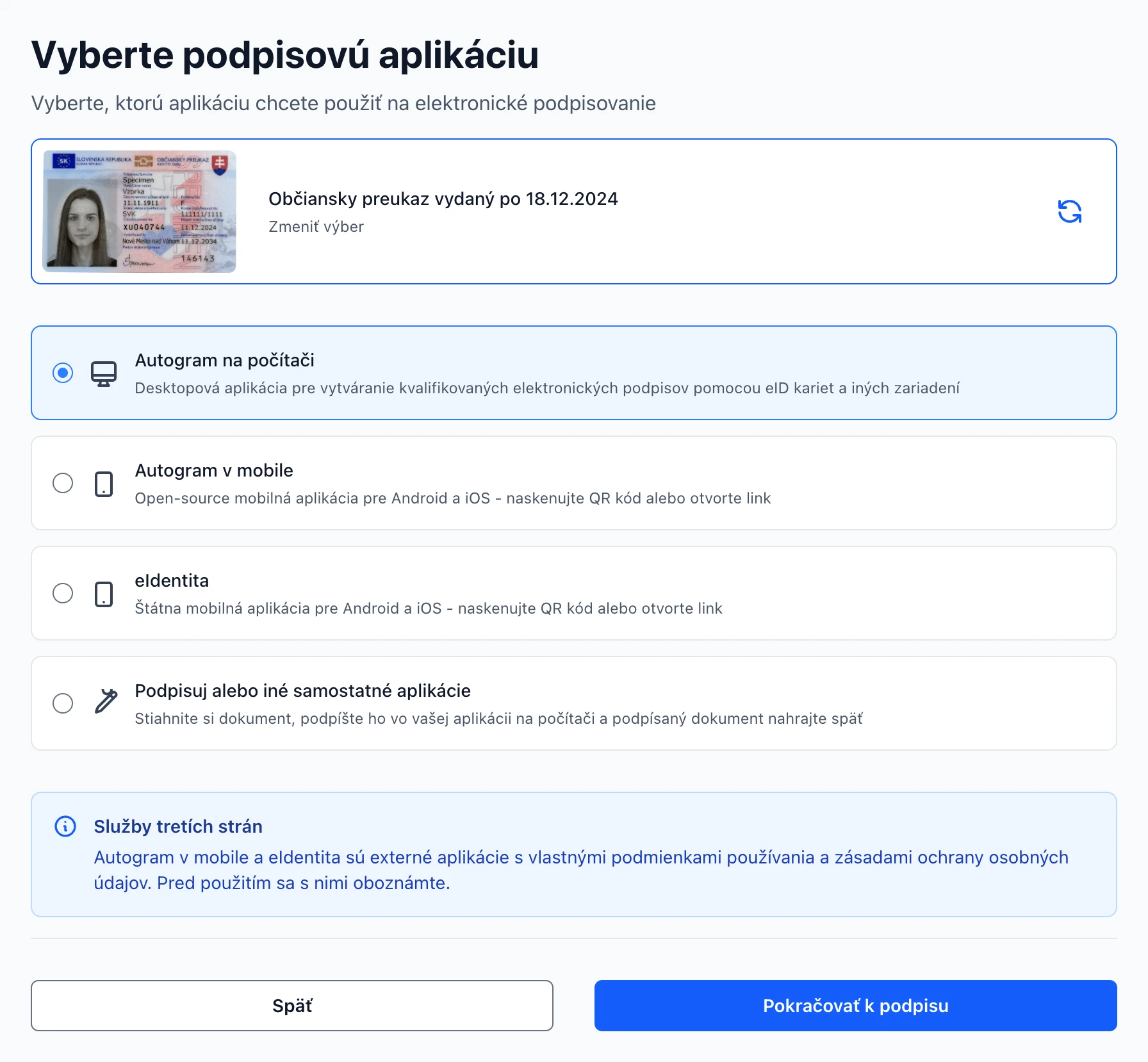 (zobrazí sa v plnej veľkosti v novom okne)
Typy podpisu
- Vlastnoručný podpis (BASELINE_B)
- Kvalifikovaný elektronický podpis bez časovej pečiatky. Podľa Občianskeho zákonníka je rovnocenný vlastnoručnému podpisu.
- Osvedčený podpis (BASELINE_T)
- Kvalifikovaný elektronický podpis s kvalifikovanou časovou pečiatkou. De facto ide o ekvivalent úradne osvedčeného podpisu. Odporúčame ho pre dokumenty s dlhšou platnosťou.
Formáty podpisu
Formát zmeníte v Rozšírených nastaveniach. Ak dokument už obsahuje podpisy, ponúkne sa iba formát, ktorý je s nimi kompatibilný. Dokument s viacerými súbormi sa vždy podpisuje ako jeden kontajner ASiC-E.
- PAdES
- Podpis vložený priamo do PDF súboru – podpísaný dokument zostane PDF. Predvolený formát pre PDF dokumenty.
- XAdES v ASiC-E kontajneri
- Výsledkom je kontajner ASiC-E (.asice), ktorý obsahuje dokument aj podpis. Vhodný najmä pre XML dokumenty, napríklad slovenské elektronické formuláre.
- CAdES v ASiC-E kontajneri
- Výsledkom je tiež kontajner ASiC-E, podpis je vo formáte CMS. Hodí sa pre ľubovoľný typ súboru.
Povolené metódy podpisu
Keď posielate dokument na podpis, v Rozšírených nastaveniach určíte, akými metódami môžu adresáti podpisovať.
- Kvalifikovaný elektronický podpis
- Podpis občianskym preukazom alebo iným kvalifikovaným zariadením cez podpisové aplikácie.
- Jednoduchý elektronický podpis
- Adresát sa overí jednorazovým kódom zaslaným SMS alebo e-mailom a portál vytvorí podpis s evidenčným záznamom (Overené AdES podpisovanie).
- Podpisuj alebo iné samostatné aplikácie
- Adresát si stiahne dokument, podpíše ho kvalifikovaným podpisom vo vlastnej aplikácii na počítači a nahrá ho späť. Pre adresátov je táto metóda predvolene vypnutá.
Prevádzkovateľ portálu môže povoliť aj ďalšie metódy, napríklad vizuálnu pečiatku v PDF alebo sken ručne podpísaného dokumentu.
Podpisové aplikácie
- Autogram na počítači
- Bezplatná aplikácia pre Windows, macOS a Linux. Podpisuje občianskym preukazom alebo kvalifikovanou čipovou kartou v čítačke kariet a vie podpísať aj viac dokumentov naraz.
- Autogram v mobile
- Bezplatná open-source aplikácia pre Android a iOS. Podpisuje občianskym preukazom s NFC čipom, ktorý priložíte k telefónu. Na počítači alebo tablete naskenujete QR kód telefónom, v telefóne sa aplikácia otvorí priamo.
- eIdentita
- Štátna mobilná aplikácia pre Android a iOS. Podpisuje občianskym preukazom s NFC čipom. Na počítači alebo tablete naskenujete QR kód telefónom, v telefóne sa aplikácia otvorí priamo.
- Podpisuj alebo iné samostatné aplikácie
- Dostupné iba na počítači, pre dokumenty s jedným súborom a pre podpis bez časovej pečiatky. Stiahnete dokument, podpíšete ho vo svojej aplikácii (napr. Podpisuj) a podpísaný súbor nahráte späť.
Autogram v mobile a eIdentita sú externé aplikácie s vlastnými podmienkami používania a zásadami ochrany osobných údajov.
Ďalšie možnosti podpisovania
- Hromadné podpisovanie
- Ak balík obsahuje viac dokumentov, na počítači ich podpíšete naraz tlačidlom Podpísať všetko cez Autogram na počítači – podpis potvrdíte iba raz. Na mobile sa dokumenty podpisujú jednotlivo.
- Overené AdES podpisovanie
- Ak odosielateľ povolí jednoduchý elektronický podpis, adresát môže podpísať aj bez občianskeho preukazu. Overí sa jednorazovým kódom, ktorý mu príde SMS na mobilné číslo zadané odosielateľom (inak e-mailom), a portál vytvorí podpis na serveri. K dokumentu pripojí referenciu na evidenčný záznam s časom a spôsobom overenia. Nejde o kvalifikovaný elektronický podpis a metóda je dostupná iba adresátom balíka.
- Časová a archívna pečiatka
- K podpísanému dokumentu môžete pridať kvalifikovanú časovú pečiatku (úroveň T) alebo archívnu časovú pečiatku (úroveň LTA), ktorá umožní overiť podpis aj po skončení platnosti certifikátov. Pečiatky sa započítavajú do mesačného limitu časových pečiatok – rovnako ako osvedčený podpis vytvorený cez Autogram v mobile.
- Viditeľné podpisové polia v PDF
- Do PDF dokumentu v balíku môžete vopred pripraviť miesto pre viditeľný podpis každého adresáta. Postup a obmedzenia sú opísané v časti Balíky, Viditeľné podpisové polia.
Údaje k referencii podpisu vytvoreného overeným AdES podpisovaním si môže ktokoľvek overiť na stránke Overiť referenciu podpisu.
Doklady a zariadenia na kvalifikované podpisovanie
Pred prvým kvalifikovaným podpisom vás portál prevedie krátkou kontrolou:
- Výber dokladu alebo zariadenia, ktorým budete podpisovať (najčastejšie slovenský občiansky preukaz, ale aj doklad o pobyte, český občiansky preukaz, kvalifikovaná čipová karta alebo USB token).
- Potvrdenie, že poznáte bezpečnostné kódy (BOK alebo PIN podľa typu dokladu).
- Potvrdenie, že máte na doklade vydané podpisové certifikáty.
Podporované doklady a zariadenia
- Občiansky preukaz vydaný po 18.12.2024
- Mobil aj počítač (NFC)
- Podporuje mobilné podpisovanie cez NFC (Autogram v mobile, eIdentita) aj podpisovanie na počítači.
- Občiansky preukaz vydaný po 1.12.2022
- Mobil aj počítač (NFC)
- Podporuje mobilné podpisovanie cez NFC aj podpisovanie na počítači.
- Doklad o povolení na pobyt vydaný po 18.10.2023
- Mobil aj počítač (NFC)
- Podporuje mobilné podpisovanie cez NFC aj podpisovanie na počítači.
- Občiansky preukaz vydaný po 21.6.2021
- Iba počítač
- Vyžaduje počítač, čítačku kariet a Autogram na počítači. Mobilné podpisovanie nie je dostupné.
- Doklad o povolení na pobyt vydaný po 10.7.2020
- Iba počítač
- Vyžaduje počítač, čítačku kariet a Autogram na počítači. Mobilné podpisovanie nie je dostupné.
- Český občiansky preukaz vydaný od 1.7.2018
- Iba počítač
- Vyžaduje kvalifikovaný certifikát nahraný v čipe od českej certifikačnej autority, čítačku kariet a Autogram na počítači.
- Kvalifikované čipové karty a USB tokeny (I.CA, MONET+, Thales/Gemalto, iné PKCS#11)
- Iba počítač
- Vyžaduje Autogram na počítači a nainštalovaný ovládač zariadenia.
- Občiansky preukaz vydaný pred 21.6.2021
- Nepodporované
- Tento typ preukazu už nie je kompatibilný s kvalifikovaným podpisovaním. Na elektronické podpisovanie potrebujete nový občiansky preukaz.
- Doklad o povolení na pobyt vydaný pred 10.7.2020
- Nepodporované
- Tento typ dokladu už nie je kompatibilný s kvalifikovaným podpisovaním.
- Český občiansky preukaz vydaný pred 1.7.2018
- Nepodporované
- Do tohto preukazu nie je možné nahrať kvalifikovaný certifikát.
Balíky
Balík slúži na posielanie dokumentov na podpis. Obsahuje jeden alebo viac dokumentov, zoznam adresátov a pravidlo, koľko z nich musí podpísať. Odosielateľom je vždy vaša organizácia. V sekcii Balíky nájdete všetky balíky organizácie.
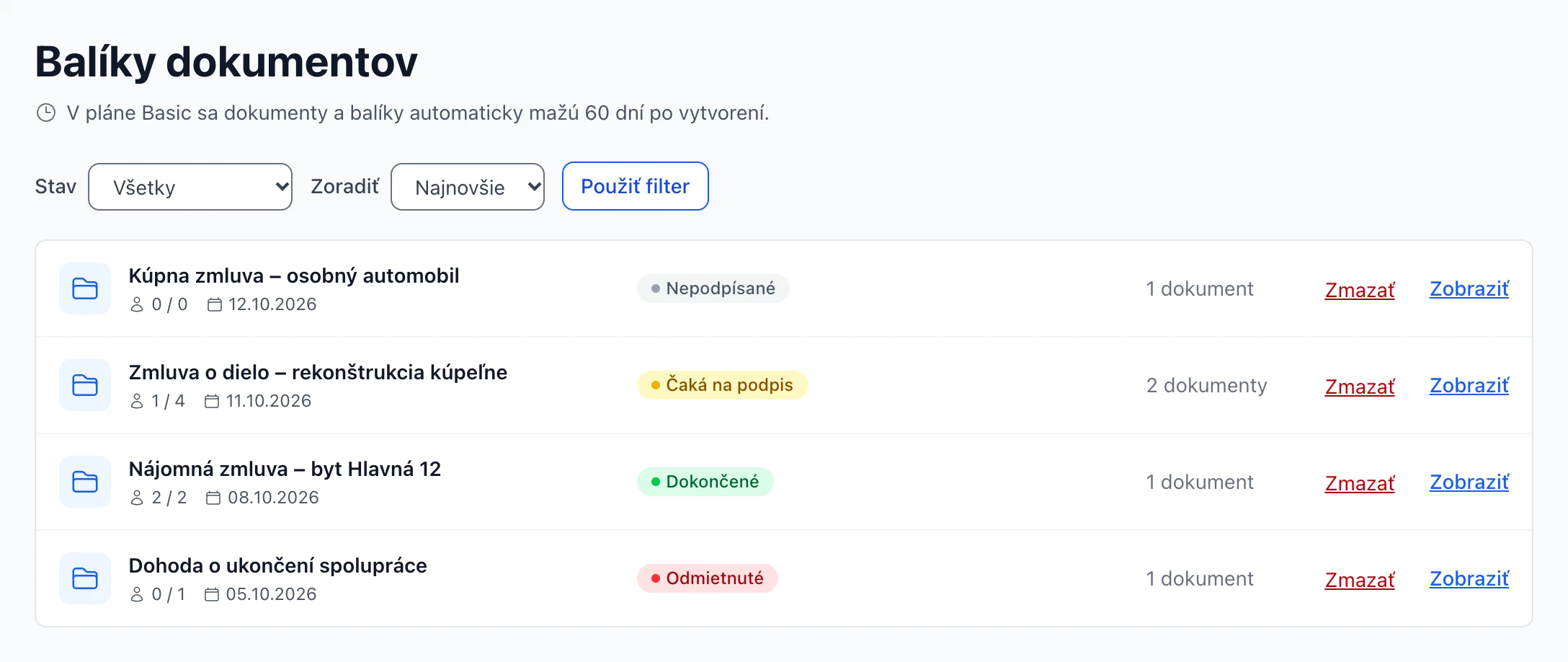 (zobrazí sa v plnej veľkosti v novom okne)
Ako poslať dokument na podpis
-
Nahrajte dokument a zvoľte Poslať na podpis
Na detaile dokumentu vyberte akciu Poslať na podpis a kliknite na Pokračovať.
-
Nastavte typ podpisu
Vyberte Vlastnoručný alebo Osvedčený podpis. V Rozšírených nastaveniach zvolíte formát a povolené metódy podpisu. Po potvrdení sa vytvorí balík a otvorí sa jeho úprava.
-
Pomenujte balík a napíšte správu
Názov je predvyplnený z názvu dokumentu. Správu pre adresátov uvidia v pozvánke ako Poznámku od odosielateľa. Kliknite na Uložiť a pridať adresátov – otvorí sa detail balíka.
-
Pridajte adresátov
Zadajte e-mail adresáta a kliknite na Pridať. Mobilné číslo vyplňte, ak sa má adresát pri jednoduchom elektronickom podpise overiť SMS kódom.
-
Odošlite pozvánky
Pozvánka sa po pridaní neodošle automaticky. Adresátov bez pozvánky portál označí ako Neodoslané; kliknite na Odoslať všetkým alebo na Odoslať e-mail pri adresátovi. Pri odoslanej pozvánke uvidíte čas odoslania. Odkaz na podpisovanie môžete adresátovi poslať aj sami (Kopírovať odkaz na podpisovanie).
-
Sledujte stav a stiahnite podpísané dokumenty
O podpisoch, odmietnutiach a dokončení balíka vás upozorníme e-mailom. Podpísané dokumenty stiahnete z detailu balíka.
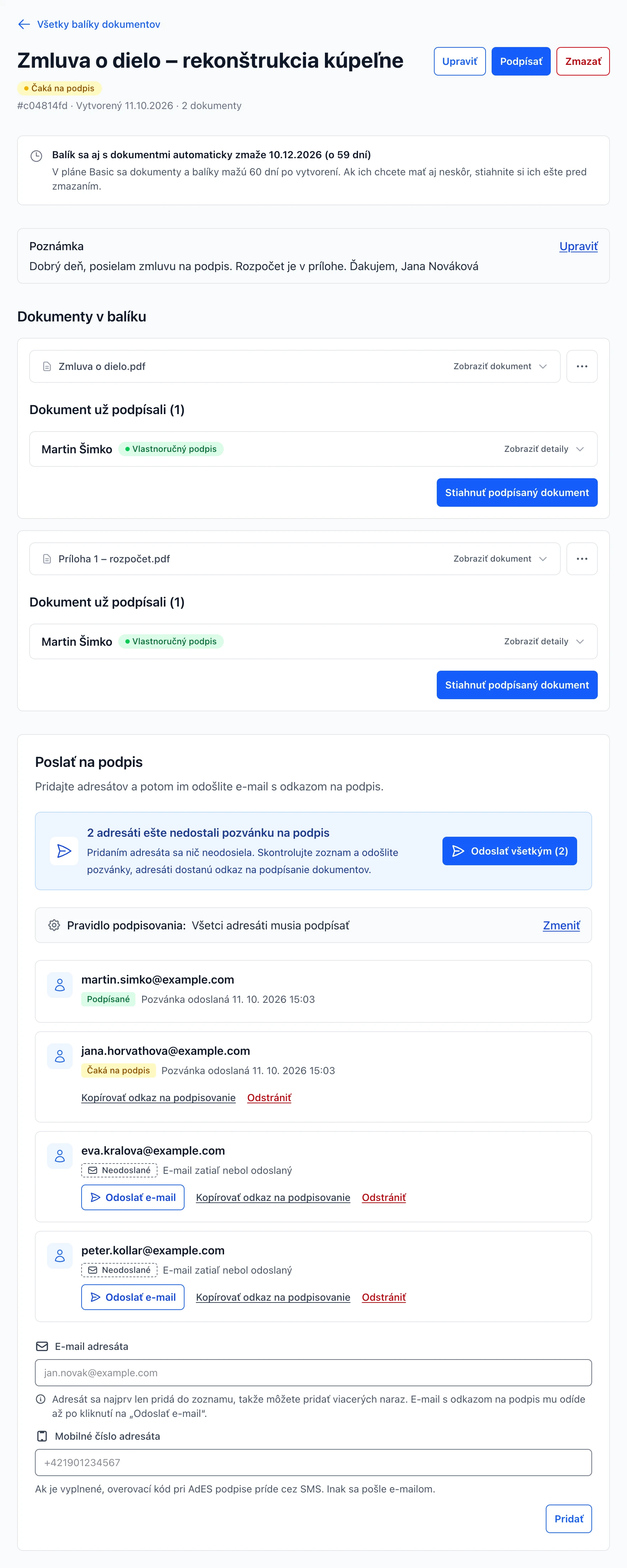 (zobrazí sa v plnej veľkosti v novom okne)
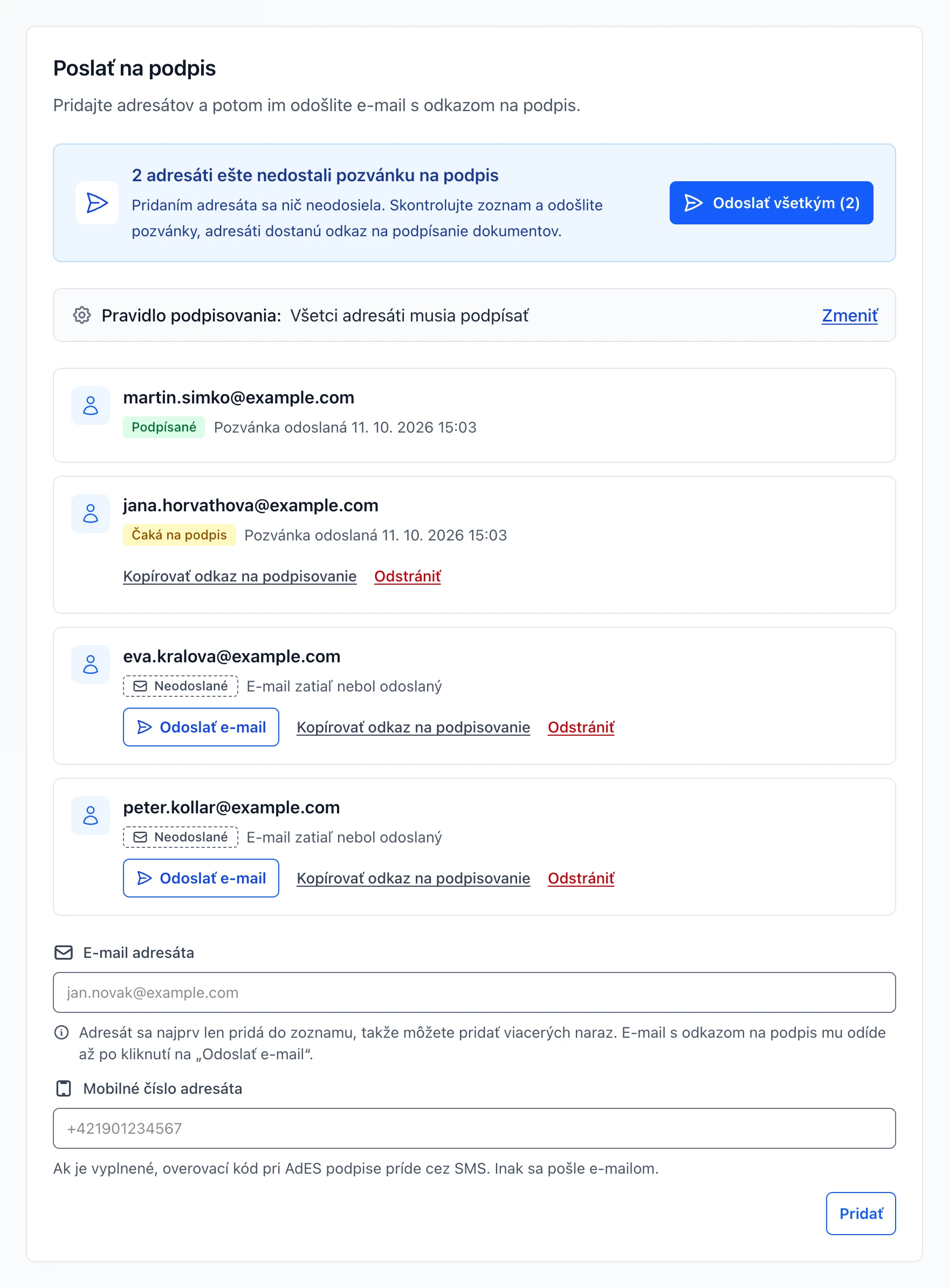 (zobrazí sa v plnej veľkosti v novom okne)
Správa balíka
- Upraviť – Zmeníte názov balíka, správu pre adresátov (zobrazí sa v pozvánke aj pri podpisovaní), pravidlo podpisovania (ak má balík aspoň dvoch adresátov), verejný odkaz a notifikácie pre autora. Adresáti, ktorým už pozvánka odišla, nový e-mail nedostanú – zmenu uvidia po otvorení odkazu.
- Podpísať – Dokumenty balíka podpíšete aj vy ako odosielateľ.
- Odstrániť adresáta – Adresátovi, ktorý ešte nepodpísal, stiahnete požiadavku na podpis a jeho odkaz prestane fungovať.
- Zmazať – Natrvalo zmaže balík aj s jeho dokumentmi.
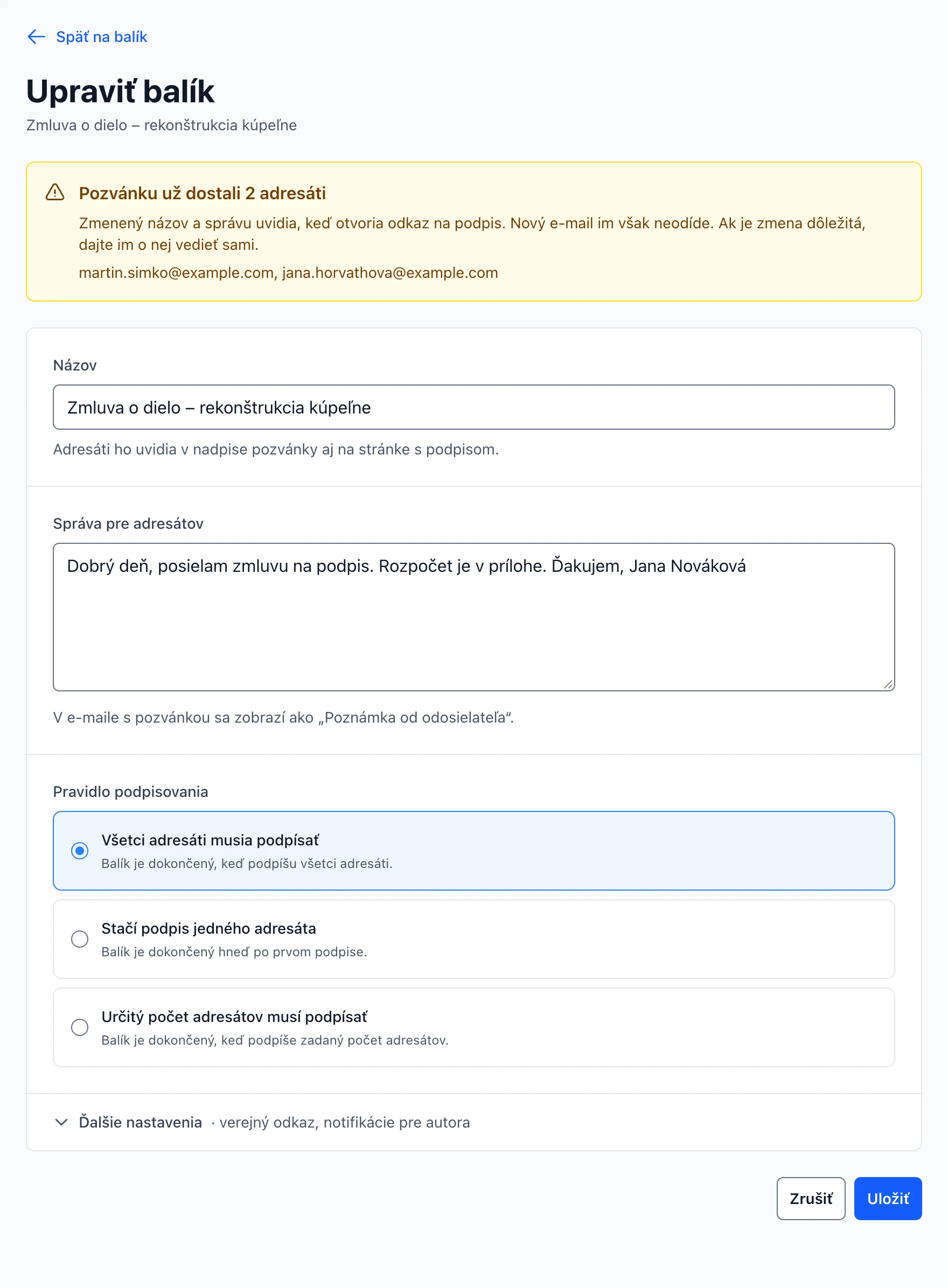 (zobrazí sa v plnej veľkosti v novom okne)
Ďalšie možnosti pri dokumente
Menej časté akcie nájdete v ponuke ⋯ vpravo pri dokumente. Ponuka obsahuje iba akcie, ktoré sa na dokument práve vzťahujú: pred prvým podpisom prípravu podpisových polí, po podpise pridanie časovej pečiatky (úroveň T) a archívnej pečiatky (úroveň LTA), v organizáciách s archívom podpisov aj históriu verzií a pri overenom AdES podpisovaní stiahnutie súkromnej evidencie. Stiahnuť podpísaný dokument môžete priamo tlačidlom pod dokumentom.
Pridanie pečiatky trvá niekoľko sekúnd. Kým prebieha, položka ukazuje, že sa pracuje, a ostatné tlačidlá dokumentu sú nedostupné. Po dokončení sa zobrazí hlásenie a pri podpise pribudne časová pečiatka. Časové a archívne pečiatky sa započítavajú do mesačného limitu časových pečiatok.
 (zobrazí sa v plnej veľkosti v novom okne)
Viditeľné podpisové polia
Do PDF dokumentu môžete vopred pripraviť miesto, kde sa zobrazí podpis každého adresáta. Ide o pokročilú funkciu formátu PAdES, ktorá má obmedzenia, preto ju nájdete v ponuke ⋯ pri dokumente.
-
Pridajte všetkých adresátov
Každý adresát dostane jedno pole. Adresátov preto pridajte ešte pred prípravou polí.
-
Otvorte ponuku pri dokumente
V detaile balíka kliknite pri dokumente na ⋯ a vyberte Pripraviť podpisové polia.
-
Potvrďte obmedzenia
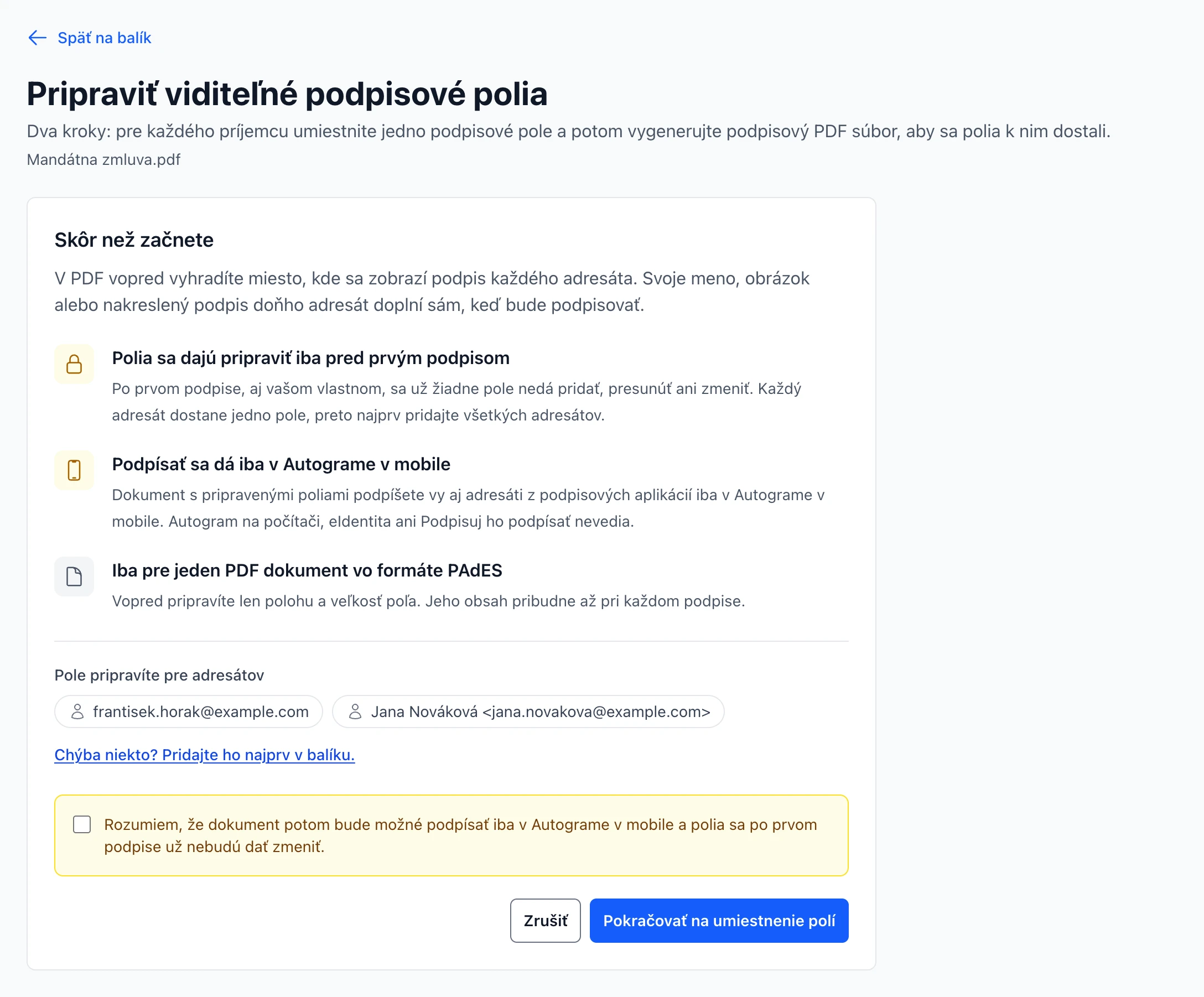
Portál zhrnie, čo príprava polí znamená a pre ktorých adresátov polia pripravíte. Označte Rozumiem… a kliknite na Pokračovať na umiestnenie polí.
-
Umiestnite polia
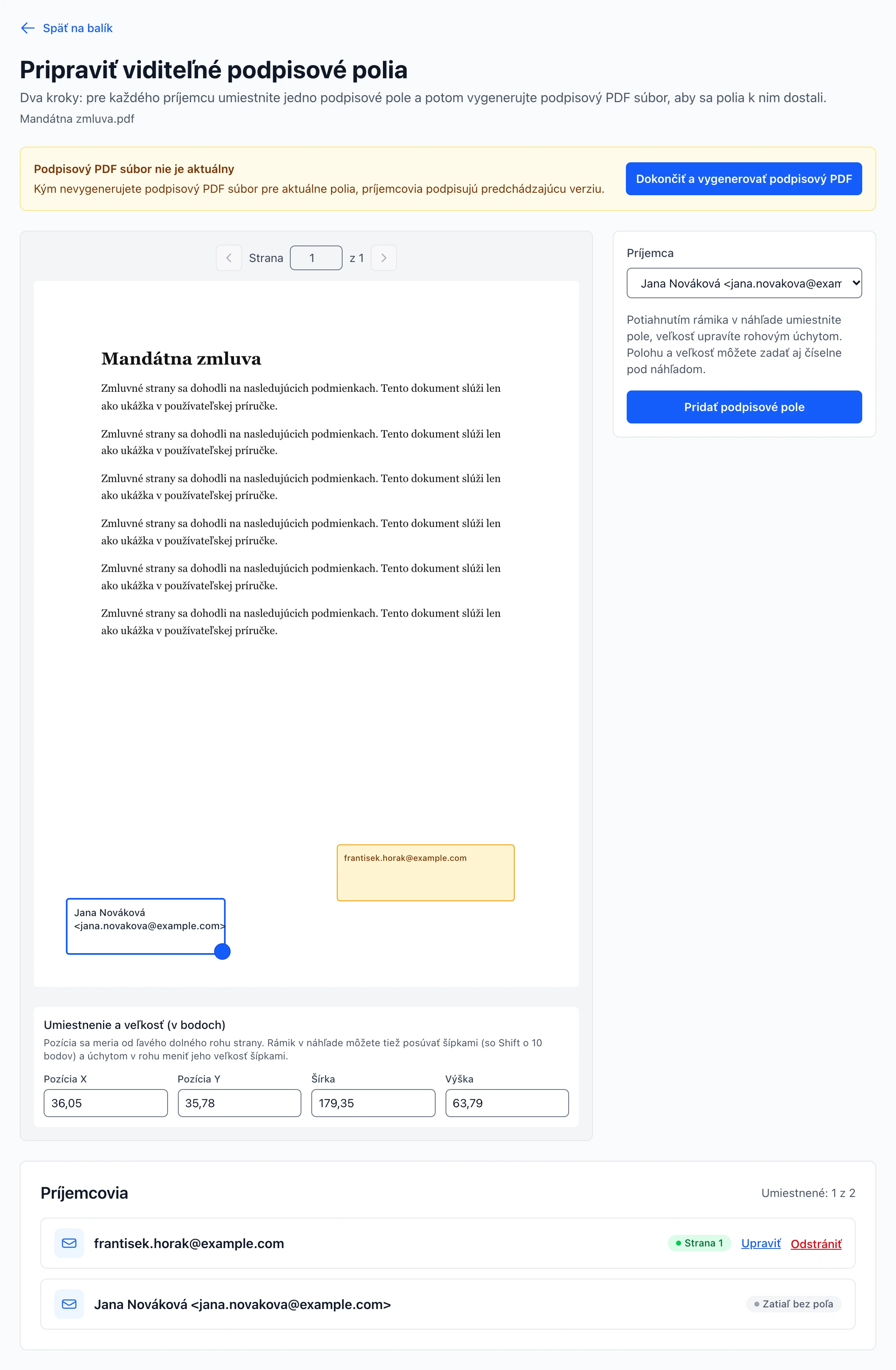
Vyberte adresáta, v náhľade potiahnite rámik na miesto podpisu (veľkosť upravíte rohovým úchytom) a kliknite na Pridať podpisové pole. Zopakujte to pre každého adresáta.
-
Vygenerujte podpisový PDF
Kliknite na Dokončiť a vygenerovať podpisový PDF. Až potom adresáti podpisujú dokument s poliami. Pri dokumente sa zobrazí počet podpisových polí a pri adresátovi strana jeho poľa.
Obmedzenia podpisových polí
- Iba pred prvým podpisom – Po prvom podpise, aj vašom vlastnom, sa už žiadne pole nedá pridať, presunúť ani zmeniť. Vopred sa pripravuje iba poloha a veľkosť poľa, meno, obrázok alebo nakreslený podpis doplní adresát pri podpisovaní.
- Iba Autogram v mobile – Dokument s pripravenými poliami sa z podpisových aplikácií dá podpísať iba v Autograme v mobile. Autogram na počítači, eIdentita ani Podpisuj ho podpísať nevedia. Platí to pre adresátov aj pre vás.
- Iba jeden PDF vo formáte PAdES – Polia sa dajú pripraviť v balíku s jedným ešte nepodpísaným PDF dokumentom, ktorý sa podpisuje vo formáte PAdES.
 (zobrazí sa v plnej veľkosti v novom okne)
 (zobrazí sa v plnej veľkosti v novom okne)
Stavy balíka
- Čaká na podpis
- Niektorý adresát ešte nepodpísal.
- Dokončené
- Podpísali všetci adresáti, ktorých vyžaduje pravidlo podpisovania.
- Odmietnuté
- Aspoň jeden adresát odmietol podpis.
- Nepodpísané
- Balík zatiaľ nemá adresátov.
Stavy adresátov
- Čaká na podpis
- Adresát ešte nepodpísal.
- Podpísané
- Adresát podpísal dokumenty balíka.
- Odmietnuté
- Adresát podpis odmietol.
- Podpis nie je potrebný
- Balík bol podľa pravidla podpisovania dokončený bez podpisu tohto adresáta.
- Stiahnuté
- Odosielateľ požiadavku na podpis stiahol.
Pravidlá podpisovania
- Všetci adresáti musia podpísať
- Balík je dokončený, keď podpíšu všetci adresáti.
- Stačí podpis jedného adresáta
- Balík je dokončený hneď po prvom podpise. Ostatným adresátom sa zobrazí, že ich podpis už nie je potrebný.
- Určitý počet adresátov musí podpísať
- Nastavíte, koľko adresátov musí podpísať, aby bol balík dokončený.
Verejný odkaz na podpisovanie
V úprave balíka v časti Ďalšie nastavenia môžete zapnúť verejný odkaz. Ktokoľvek, kto ho má, potom môže dokumenty v balíku podpísať bez pozvánky. Odkaz skopírujete z detailu balíka.
Notifikácie
Ak sú zapnuté Notifikácie pre autora, e-maily o podpisoch, odmietnutiach a dokončení balíka dostáva ten, kto balík poslal na podpis – nie však o tom, čo urobil sám. O balíkoch poslaných cez API dostávajú e-maily vlastníci organizácie.
Prijaté na podpis
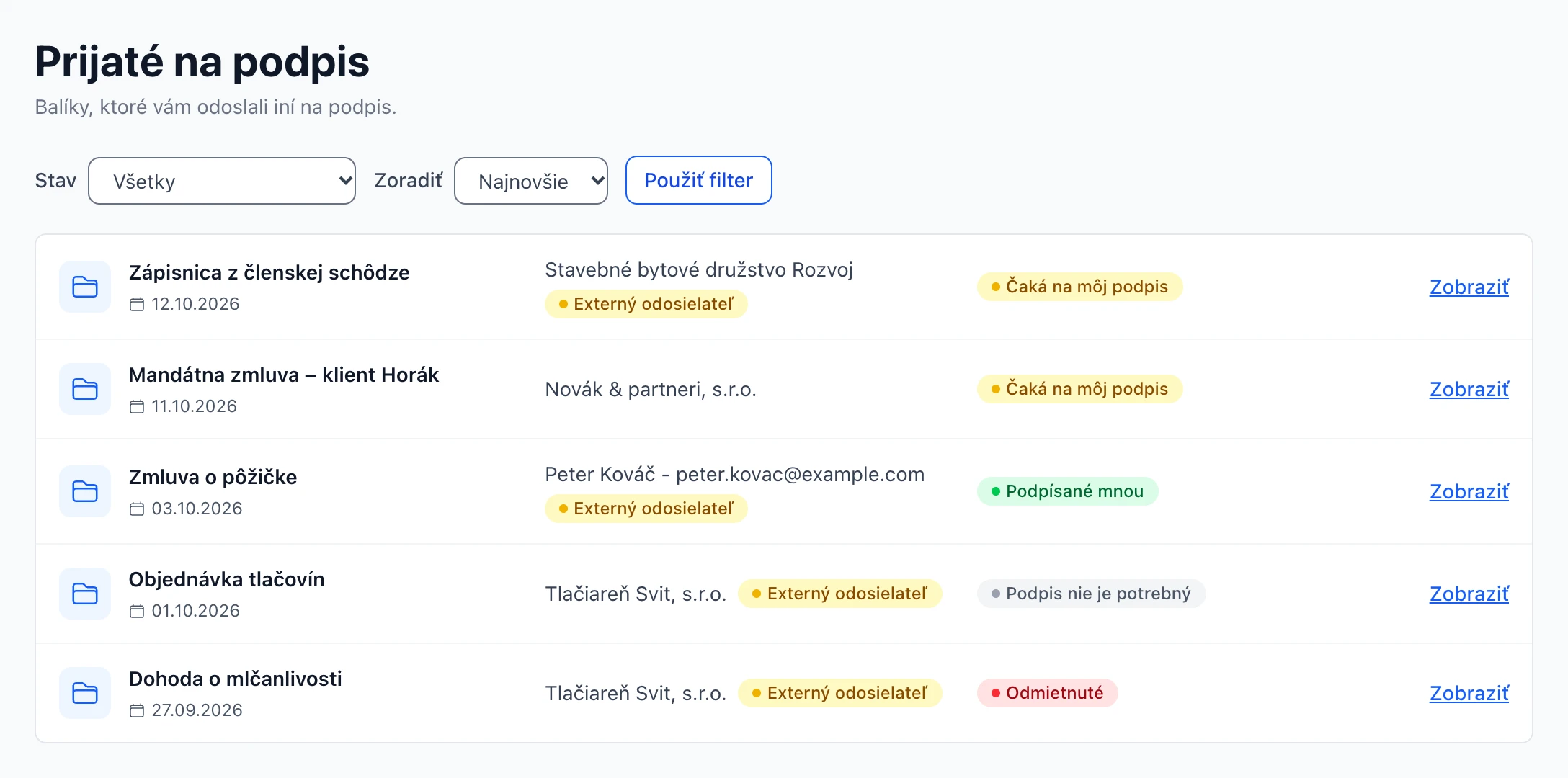
Keď vás niekto požiada o podpis, dostanete e-mail s odkazom. Odkaz funguje aj bez prihlásenia. Ak máte v portáli účet s rovnakým e-mailom, balík nájdete aj v sekcii Prijaté na podpis a na stránke Domov.
 (zobrazí sa v plnej veľkosti v novom okne)
Stavy prijatých balíkov
- Čaká na môj podpis
- Ešte ste nepodpísali.
- Podpísané mnou
- Dokumenty balíka ste podpísali.
- Odmietnuté
- Podpis ste odmietli.
- Podpis nie je potrebný
- Balík bol dokončený bez vášho podpisu, napríklad podľa pravidla Stačí podpis jedného adresáta.
Balíky od organizácií, ktorých nie ste členom, sú označené ako Externý odosielateľ. Pred podpisom skontrolujte, kto vám dokument posiela.
Podpísanie prijatého balíka
Po otvorení balíka vidíte odosielateľa, jeho poznámku, dokumenty a adresátov, od ktorých sa podpis čaká. Vyberte spôsob podpisu – Elektronické podpisovanie alebo Overené AdES podpisovanie, ak ho odosielateľ povolil – a kliknite na Pokračovať. Ak balík obsahuje viac dokumentov, na počítači ich môžete podpísať naraz.
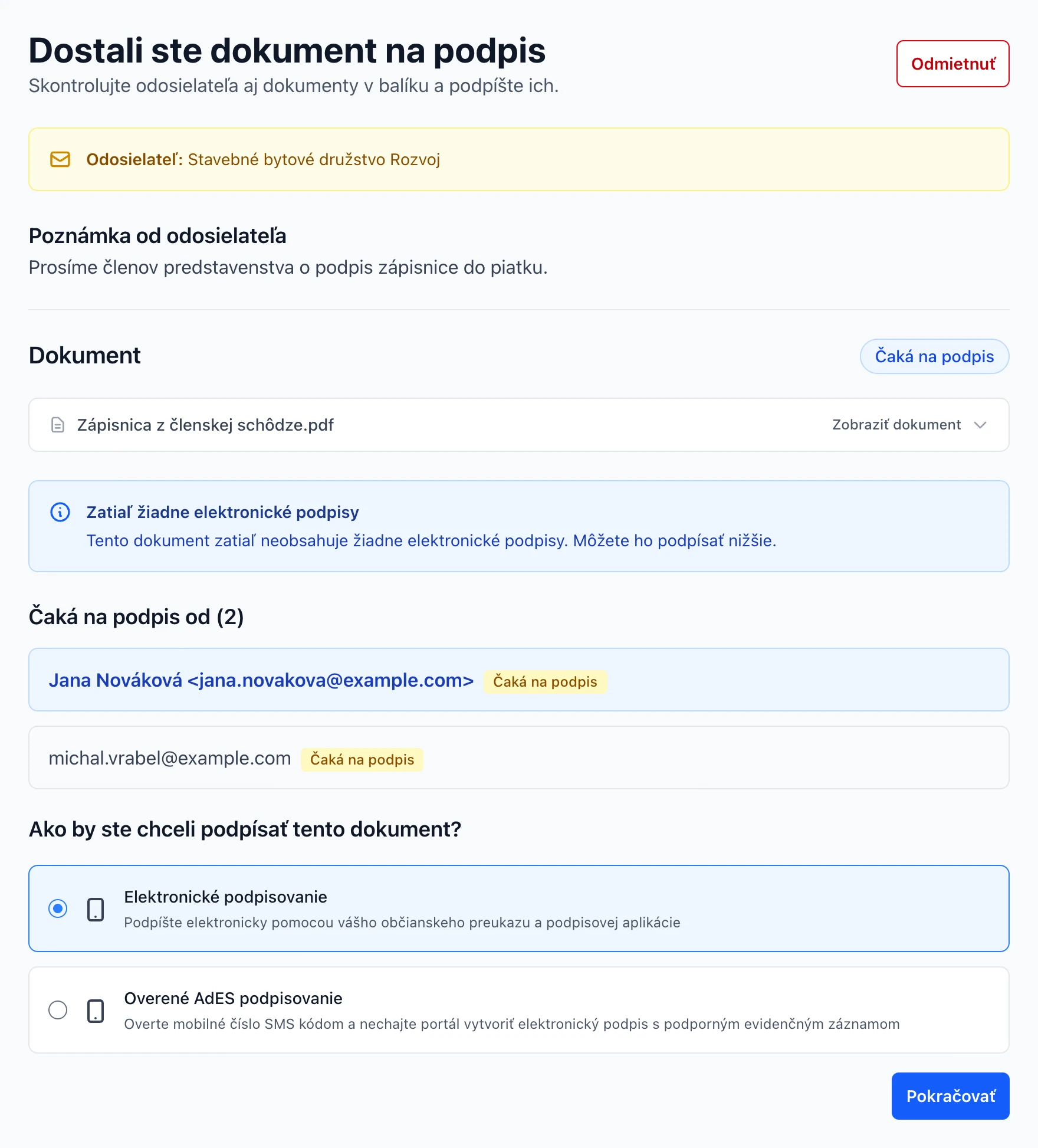 (zobrazí sa v plnej veľkosti v novom okne)
Odmietnutie podpisu
Tlačidlom Odmietnuť podpis odmietnete a odosielateľ dostane e-mail. Kým balík nie je dokončený, rozhodnutie môžete zmeniť tlačidlom Prijať znova. Ak odosielateľ požiadavku stiahne, odkaz na podpisovanie prestane fungovať.
Archív podpisov
Archív podpisov je dostupný v organizáciách so zapnutou funkciou Archív podpisov. Pri každom podpise si portál uloží validačné metadáta podpísaného dokumentu: kto ho podpísal, úroveň podpisu, odtlačok SHA-256 a dátum, do ktorého je podpis overiteľný. Ak sa tento dátum blíži, stránka Domov vás upozorní.
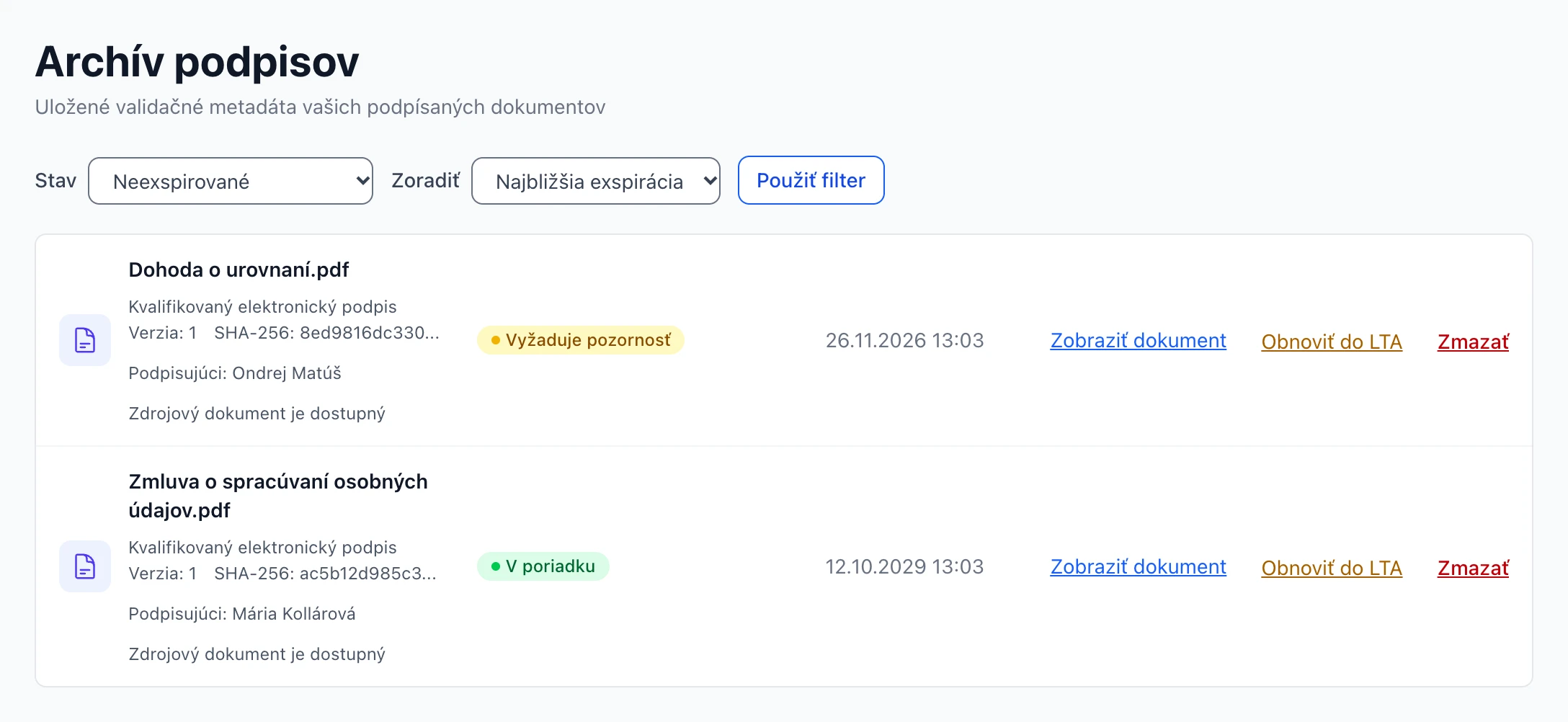 (zobrazí sa v plnej veľkosti v novom okne)
Stavy záznamov
- V poriadku
- Podpis zostane overiteľný ešte viac ako dva mesiace.
- Vyžaduje pozornosť
- Overiteľnosť podpisu skončí do dvoch mesiacov.
- Exspirované
- Overiteľnosť podpisu už skončila.
- Neznáme
- Dátum exspirácie sa nepodarilo zistiť.
Akcie pri zázname
- Obnoviť do LTA – Vytvorí novú verziu dokumentu s archívnou časovou pečiatkou a predĺži tak overiteľnosť podpisov.
- Zobraziť dokument – Otvorí detail dokumentu. V Histórii verzií nájdete všetky jeho podpísané verzie.
- Zmazať – Odstráni iba uložené metadáta – dokument zostane zachovaný.
Nastavenia
Nastavenia otvoríte v ľavom menu. Obsahujú váš používateľský účet a nastavenia organizácie, v ktorej práve pracujete.
Účet používateľa
- Meno – Zobrazuje sa adresátom a v e-mailových notifikáciách.
- E-mail – Slúži na prihlásenie a v nastaveniach ho nemožno zmeniť.
- Jazyk – Slovenčinu alebo angličtinu prepnete v ľavom menu dole.
- Zmazať účet – V Nebezpečnej zóne napíšte potvrdzovaciu frázu a kliknite na Zmazať účet. Účet nemožno zmazať, kým ste jediným vlastníkom organizácie, ktorá má ďalších členov.
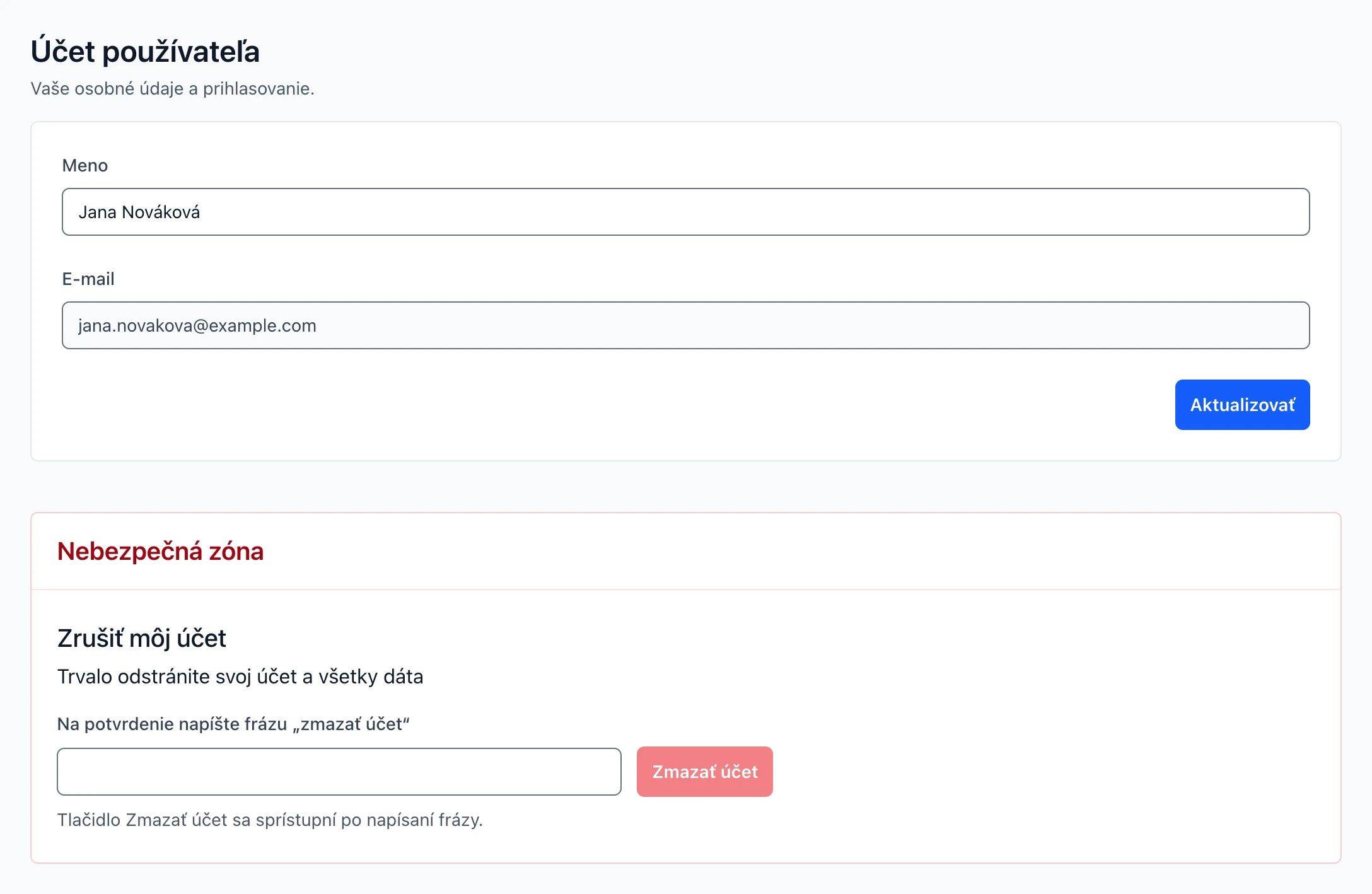 (zobrazí sa v plnej veľkosti v novom okne)
Organizácia
- Názov a plán – Názov organizácie a jej plán mení iba administrátor portálu. Názov osobnej organizácie sa odvodzuje od vášho mena alebo e-mailu.
- Verejný kľúč API tokenu – Vlastník tu nastaví verejný kľúč na overovanie API tokenov. Pole je dostupné iba v organizácii s plánom PRO, ktorá má zapnutý API prístup. V pláne Basic API nie je dostupné.
- Využitie plánu – Čerpanie limitov, doba uchovávania dokumentov a maximálna veľkosť dokumentu.
- Členovia – Vlastník pozve člena zadaním e-mailu a roly (Člen alebo Vlastník) a môže členov odstrániť. Pozvaný dostane e-mail, a ak ešte nemá účet, vytvorí sa mu. Plán Basic umožňuje iba jedného používateľa.
- Opustiť organizáciu – Ak ste členom viacerých organizácií, organizáciu môžete opustiť. Posledný vlastník ju opustiť nemôže.
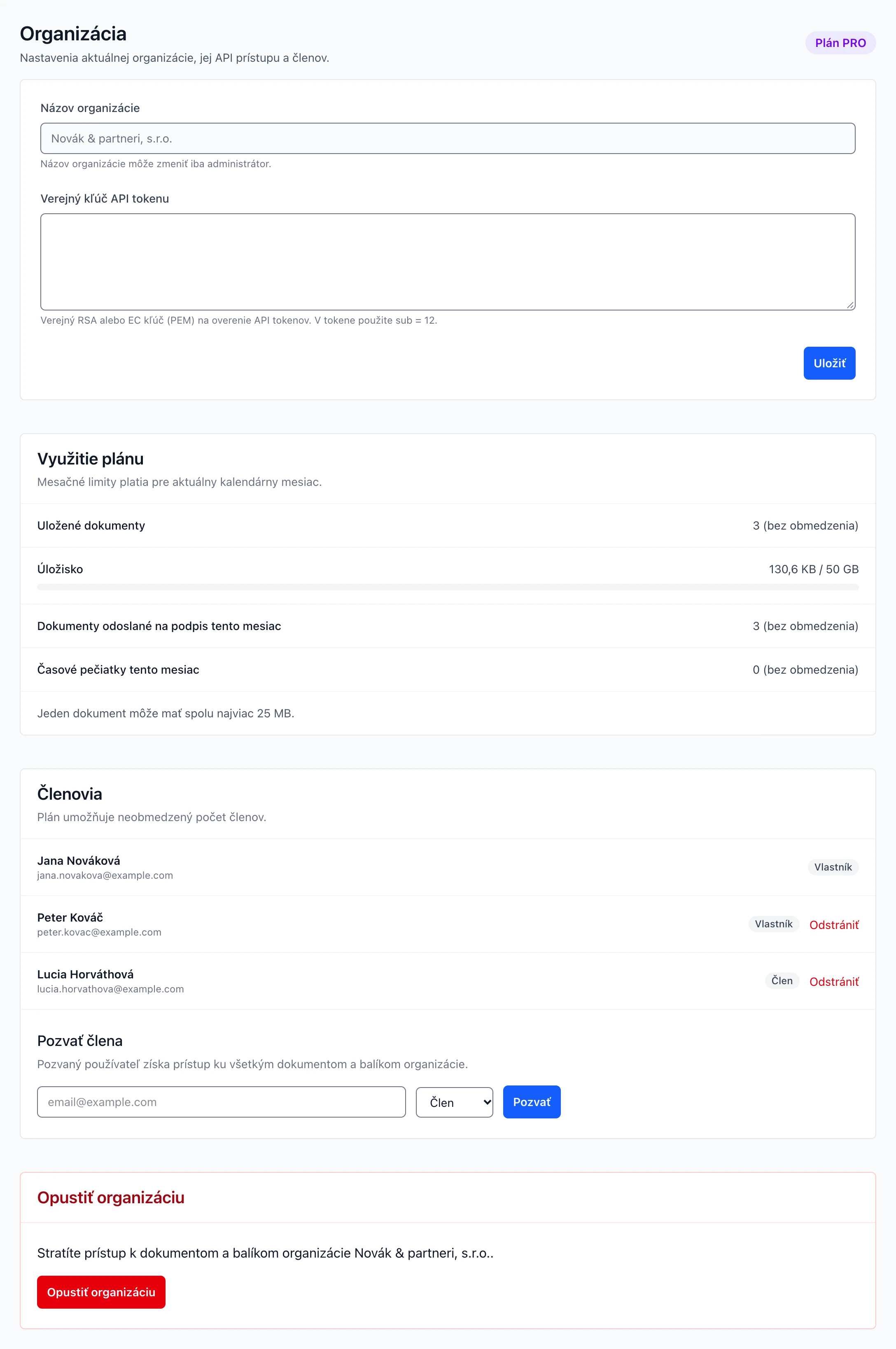 (zobrazí sa v plnej veľkosti v novom okne)
API a SDK
API je dostupné iba v pláne PRO, ktorý je určený pre právnické osoby. Organizácie PRO so zapnutým API prístupom môžu Autogram Portal prepojiť s vlastnou aplikáciou. API prijíma JWT tokeny podpísané vaším kľúčom: verejný kľúč vloží vlastník v Nastaveniach organizácie a v tokene uvediete sub = ID organizácie.